Send AI Meeting Summaries to Participants Right from Notion
Shoutout to Reid from Educentric for the great idea of this workflow!
In this use case, you wish to automatically send an email containing the AI summary of your meeting in Notion. You can transcribe meetings in Notion and let AI generate a summary using the AI Meeting Notes block*. Then click a button that triggers an external automation to send the AI summary to all meeting participants, as detailed on your Notion meeting page (via a relation and person properties).
This could eliminate the need for any other meeting transcription/assistant tools. That depends on your feature requirements, because the AI Meeting Notes block doesn’t record the meeting audio or video — it only transcribes the words.
*only available on the Business and Enterprise plans
How to Implement the Meeting Summary Automation
Here are the steps to implement the automation. Though it may look like a long process, it only takes a few seconds or minutes to run to completion.
Use a Meetings data source in Notion — this consolidates all your meetings in one place, making it easy to find meetings and retrieve data via automation.
Include a “Contacts” relation property to a Contacts data source (containing people data)
Include a “Participants” person property to define the internal users in your Notion workspace who take part in each meeting.
Include an AI Meeting Notes block in your Meetings data source template — so you always find the AI meeting block ready for use on each meeting page in Notion, and you press the button to start transcribing.
You need the Notion app (desktop or mobile) to use the AI Meeting Notes block fully. Also, beware the transcription may suddenly stop sometimes - you will notice when it stops because the floating Notion icon on your screen disappears (assuming you don’t hide it yourself by closing it).
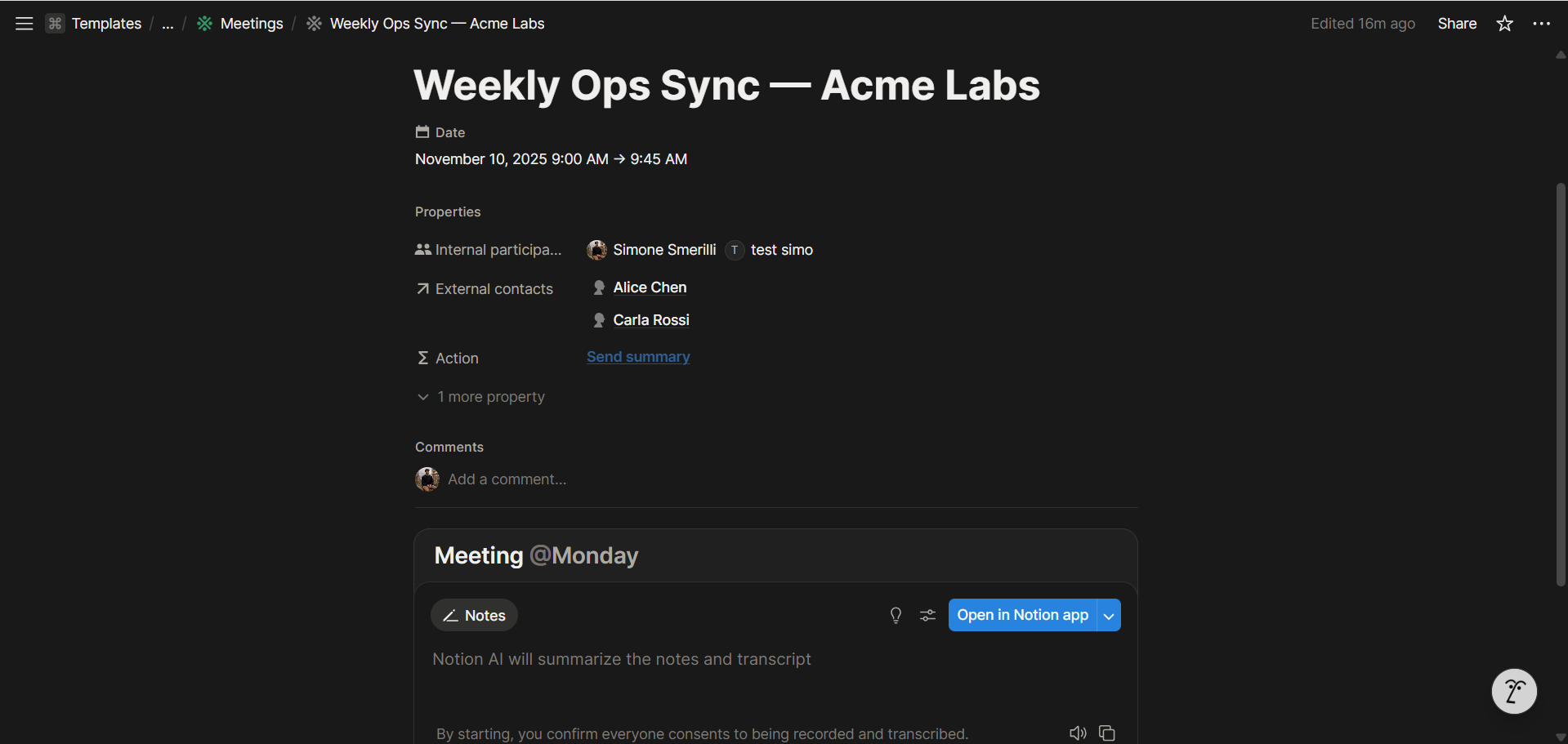
Notion page with AI Meeting Notes block
Include a button or formula property on the Meetings data source — this will trigger a webhook that starts the automation to send the AI summary to all participants. You will click this button when you wish to send the email, so you can control when the automation triggers.
I prefer using a Formula because I can conditionally let users click the button only when, say, the email hasn’t already been sent, AND the meeting is over. In other cases, the formula property displays a message (e.g., “Email already sent”) or nothing (and is hidden). This reduces confusion and possible accidents.
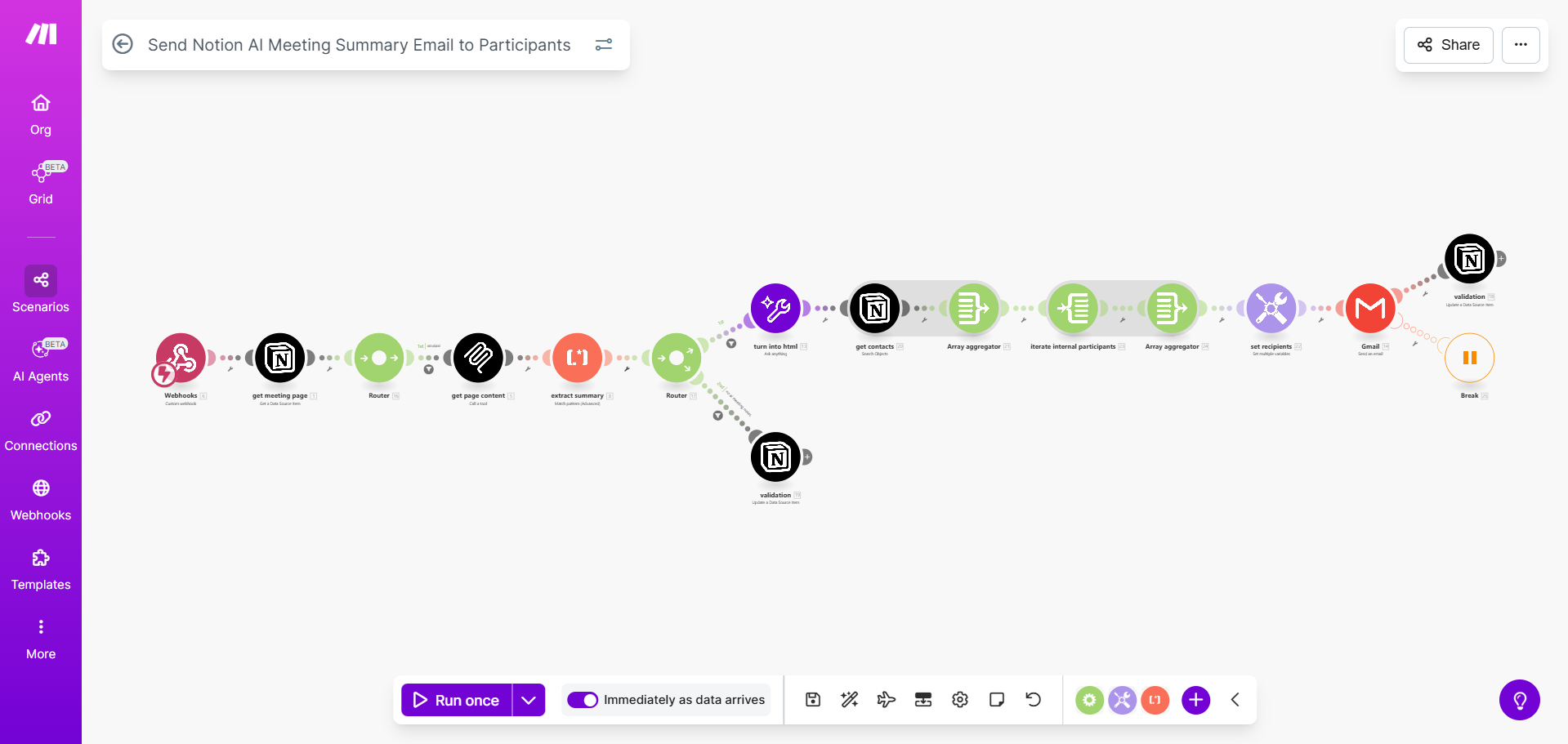
Build the automation. Upon webhook trigger:
Retrieve the meeting page content via the Notion MCP “fetch” tool call. A traditional API call to retrieve page content doesn’t work because the AI Meeting Notes block is not supported in the Notion API (as of November 2025), but it is supported in the Notion MCP server. If you wish to learn more about the Notion MCP, check out this content. Use the
page_idfrom the webhook as the MCP call input.Use REGEX to extract only the AI Meeting Summary. Since the MCP “fetch” tool outputs all the page content (in Notion-flavored markdown), you must extract only the AI Summary and discard all the other page content. The AI summary is wrapped in the <summary></summary> tag in the Notion MCP output, which makes it easy to use REGEX to extract only that part of the page content. The REGEX pattern is:
<summary>([\\s\\S]*?)<\\/summary>NOTE: sometimes, there may be no AI summary in the Notion page. When that’s the case, the REGEX module output will be empty, and you can use a fallback route to output a message to the user explaining the situation, or handle this situation in any other way you prefer.
Retrieve all external and internal participants. These are specified in the “Contacts” and “Participants” properties I mentioned previously. You want to retrieve those people so that you can include them as email recipients, since the ultimate goal is to send an email to all meeting participants. This assumes that your “Contacts” data source contains an “email” property, which you must ensure is consistently filled out.
In the automation, you can handle situations where emails are missing. You may still send the email to everyone whose email address is present (excluding those without an email in the Notion data source), or do something else. Once you retrieve contacts and participants in the meeting, you can aggregate their email addresses for easy mapping into the next module, which sends the email to everyone.
Send them an email containing the AI Meeting summary. The template and demo use Gmail, but you may use Outlook or a transactional email provider if preferred. The concept is the same. You include the subject, email body, and recipients. You can use dynamic values from previous modules. You can use HTML to format the email body nicely. The template includes all of this, and it’s also shown in the explanation video. I included all recipients as Bcc’d on the email; you can also include them all as direct recipients or CC’d if preferred.
Acknowledge the successful run in Notion. Once the process is complete, a dedicated Notion text property is updated to let the user know that the email was sent. This ensures the user knows what happened, rather than clicking the button and waiting in the dark. This validation property can also be used to conditionally hide the button (when this is filled out, return an empty value or a friendly message).
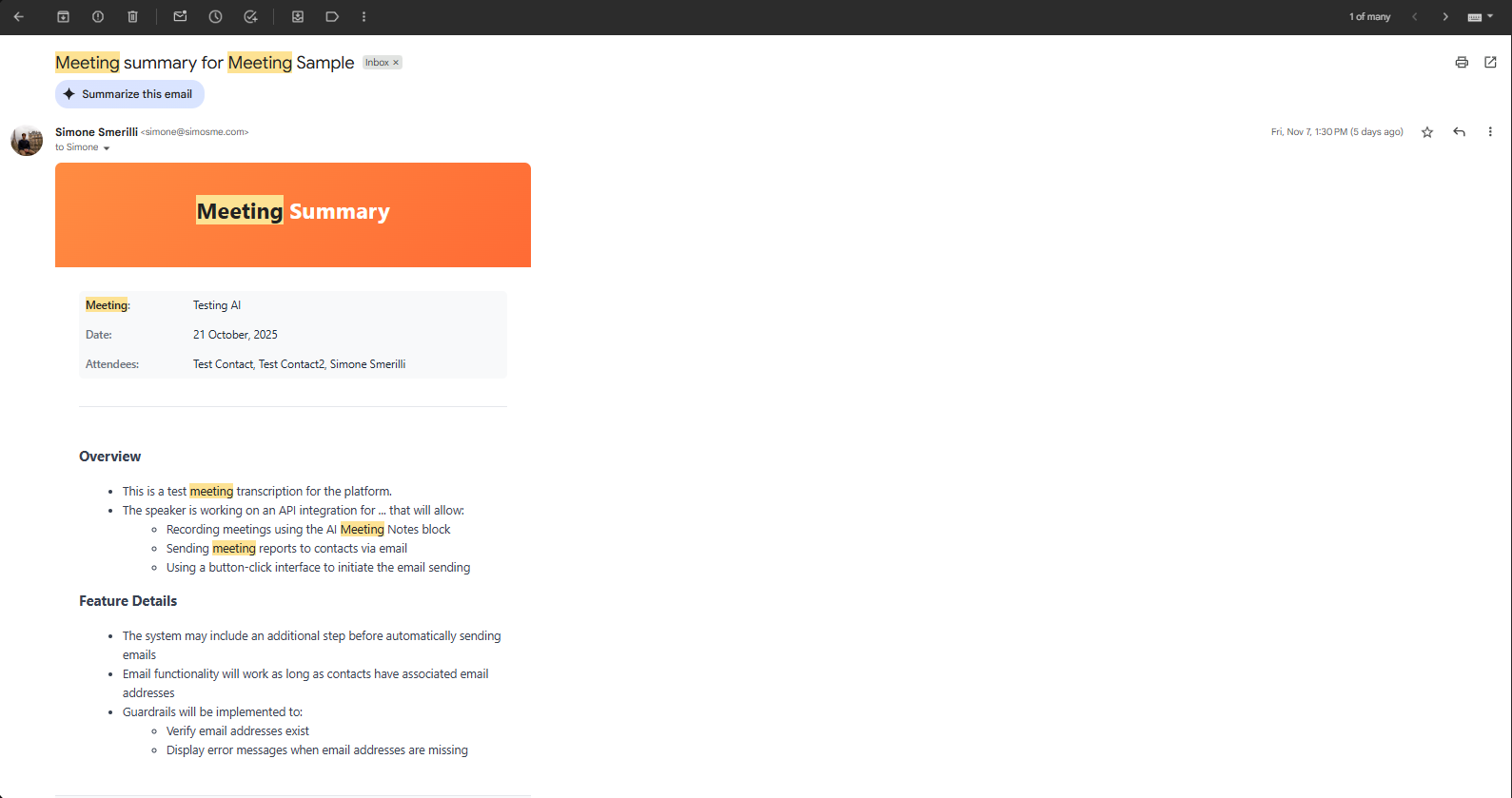
Example email sent via the automation
FAQs
-
Yes, anyone who has access to the meeting page from which the automation is triggered.
-
Yes, the AI Meeting Summary is editable like any other Notion block. Feel free to refine it before triggering the email automation.
-
The AI Meeting Notes block only transcribes the audio; it doesn’t record it. So, this automation doesn’t support sending audio/video recording. It could be done via a custom solution (contact me if you wish to work together).
-
By storing them in the Incomplete Execution queue in the Make scenario. This ensures the whole automation doesn’t stop abruptly when an error occurs. It allows you to investigate, make any necessary changes, and re-run the incomplete execution at any time directly on the Make canvas. I have developed the automation to minimize errors, though I can’t control 500 (server-side) errors that sometimes may occur in APIs.
-
Only Business and Enterprise, because the AI Meeting Notes block is only available in those two plans.
-
Yes, you may rebuild the automation in any other software you prefer. I only provide the Make blueprint in this product.
-
The Notion formula uses conditional logic to hide the button if the email has already been sent. This prevents any duplication.
-
You can click the Resume button to resume transcription. If you miss that, only the transcribed part of the meeting will be included in the summary, which you can edit or enrich if needed.